Outcome: After reading, you’ll understand which current tools matter, how to combine them sensibly, and how to level up your workflow without drowning in feature overload.
Exclusion: This article doesn’t cover coding tools, 3D rendering engines, or print-press production specifics.
Why Modern Tools Matter
Design today is faster, more collaborative, and more complex than ever. Tools aren’t just “software” anymore — they’re full ecosystems. They decide how easily you collaborate, iterate, and present ideas. The distinction between amateur and professional output is often nothing more than the designer’s command of these tools.
Modern tools democratize quality. Good design is no longer locked behind expensive licenses or specialized hardware. But the flip side is that the landscape gets overwhelming, and many designers jump between tools instead of mastering them.
The real game is understanding what fits your workflow, not chasing the latest hype.
Core Tools Every Designer Uses Today
Here’s a pragmatic breakdown of the current lineup that actually matters.
Figma
Figma remains the backbone for UI/UX, prototyping, and collaboration. It’s fast, syncs reliably, works on any device, and its plugin ecosystem reduces a lot of repetitive work. Designers stick with it because it’s efficient, not because it’s trendy.
Adobe Creative Cloud (Photoshop, Illustrator, InDesign)
Adobe is still the deep toolbox for pixel-perfect and print-focused work. Photoshop handles advanced compositing and retouching. Illustrator is unmatched for vector precision. InDesign dominates layout-heavy tasks. The learning curve is real, but so is the payoff.
Affinity Suite
Affinity Designer, Photo, and Publisher hit the sweet spot for designers who want performance without subscriptions. They’re lighter, clean, fast, and extremely capable. Many freelancers switch for cost efficiency and stay for speed.
Canva
Canva is no longer just a “beginner tool.” It’s become a rapid-design platform for marketing teams and social content creators. Pre-built templates cut time to execution dramatically. It’s not for complex projects, but unbeatable for quick visuals.
Procreate
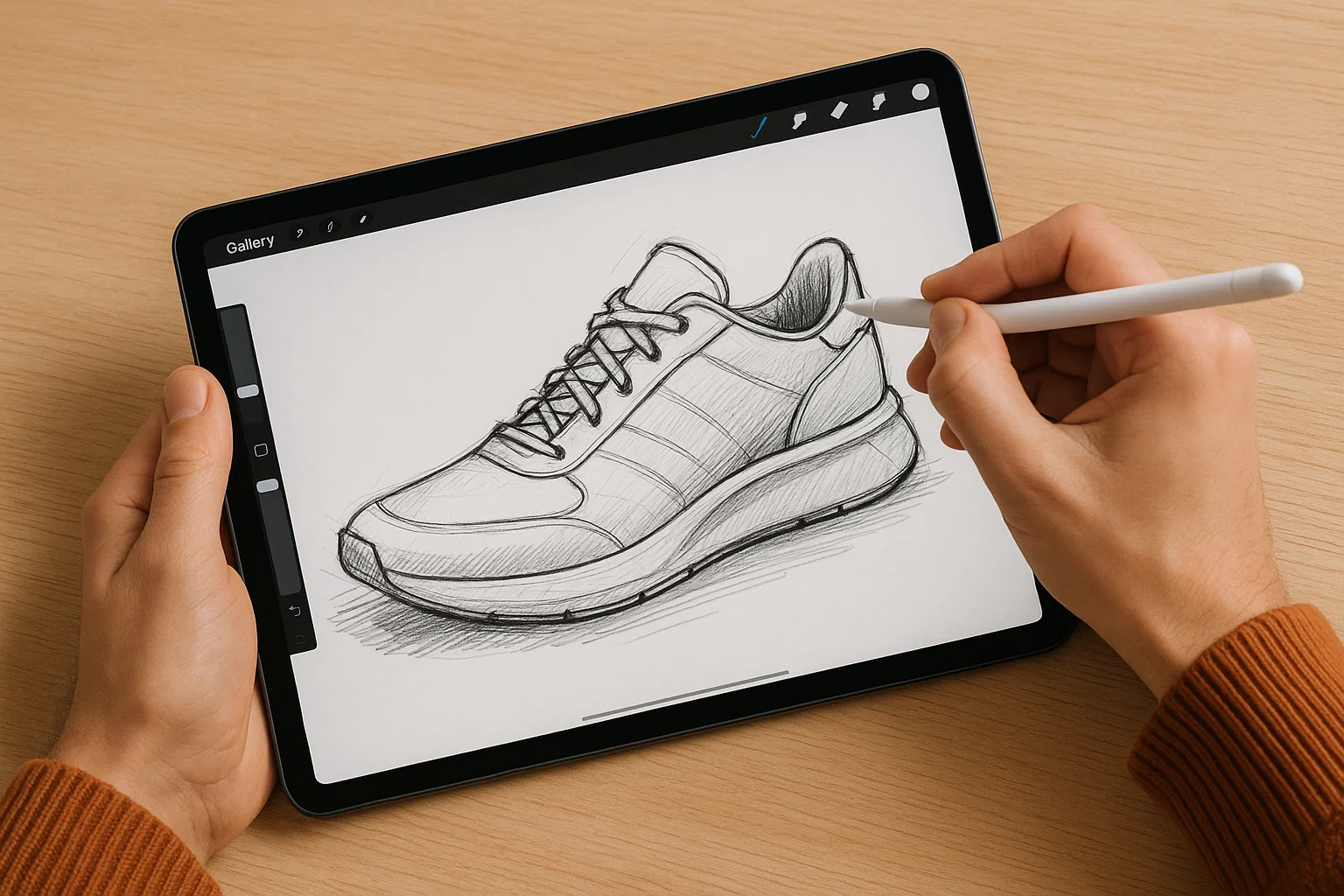
On iPad, Procreate remains the best mix of immediacy, brush control, and pure creativity. The tactile feeling of drawing directly on a screen keeps many illustrators loyal.
AI-Integrated Tools
Tools like Midjourney, Adobe Firefly, and Ideogram now help generate concepts, textures, and variations. When used with intent, they accelerate ideation — not replace designers. Professional use depends heavily on clarity of prompts and the ability to refine results.
How to Streamline Your Workflow Without Overthinking
A messy workflow slows creativity. A professional one creates flow.
The cleanest modern approach:
– Use Figma for layout, wireframes, prototyping, interfaces
– Use Photoshop or Affinity Photo for image work and retouching
– Use Illustrator or Affinity Designer for vector assets
– Use Procreate for custom illustrations and textures
– Use AI tools to generate moodboards, concept variants, or draft compositions
– Use Canva to export fast marketing versions when speed matters more than complexity
The secret: each tool gets a purpose. No redundancy.
No jumping between apps because “it might be better.”
The more predictable your environment, the more mental space you free up for design decisions.
Designing for Quality: Principles Enhanced by Modern Tools
Modern tools don’t magically improve design — they amplify good fundamentals.
Consistency becomes easier when you use shared libraries and reusable components.
Typography becomes sharper when you rely on modern variable fonts and grid systems.
Color accuracy improves with live previews, accessible contrast testing, and color-management profiles.
Layout quality tightens with snapping, grids, alignment tools, and constraints.
Tools provide structure, but clarity of intention is still the real skill.
When AI Tools Help — and When They Don’t
AI accelerates ideation, but it doesn’t replace professional judgment.
AI helps when you need:
– quick variations of a concept
– imaginative references
– color proposals
– texture or pattern ideas
– placeholder visuals during prototyping
AI doesn’t help when you need:
– brand consistency
– pixel-perfect layouts
– accessibility compliance
– nuanced visual hierarchy
– storytelling through design
Treat AI as a creative assistant — never as an autopilot.
Practical Workflow Examples
Example A: UI/UX Designer
- Start in Figma: wireframes → layout → interaction prototypes
- Use Illustrator for icons and vector components
- Use Photoshop for textures or image editing
- Export to a dev handoff tool inside Figma
- Use AI to generate alternative color schemes or moodboards
Example B: Branding Designer
- Use Illustrator for logos, typography exploration, vector assets
- Use Photoshop for mockups and presentations
- Use InDesign or Publisher for brand guideline documents
- Use AI to generate concept directions or style references
Example C: Social Content Designer
- Use Canva for multiformat exports and templates
- Use Photoshop for advanced edits
- Use AI to brainstorm layout ideas or imagery
- Maintain brand assets in a central cloud folder
This is the modern hybrid workflow: each tool does its job, nothing overlaps, nothing wastes time.
Common Mistakes Designers Make With Modern Tools
Many designers sabotage themselves unintentionally:
– Jumping to new tools instead of mastering one
– Using AI outputs without refining them
– Overloading designs with effects simply because tools make it easy
– Ignoring accessibility and contrast rules
– Working without a component library
– Failing to organize files, layers, and naming
– Not using templates or presets when they save hours
– Treating “speed” as more important than clarity
A clean workflow turns chaotic projects into manageable ones.
Final Thoughts
Modern design tools give you capabilities that were unthinkable a decade ago. But tools don’t define the designer — mastery does. The combination of good fundamentals, clean workflows, and thoughtful tool choice is what produces professional-grade visuals today.
Modern tools remove friction. Your job is to use that freedom intentionally.
FAQ
Q: Which tool should beginners start with?
Figma for layout and Canva for fast production. They’re intuitive and free to start.
Q: Are AI tools safe for professional use?
Yes, as long as the final design is manually refined, brand-aligned, and checked for licensing constraints.
Q: Is Adobe still necessary for professional work?
For high-level retouching, print work, and complex vectors — yes. For casual or mid-range work — not always.
Q: Can a full workflow be built without subscriptions?
Yes: Affinity Suite + Procreate (one-time purchases) cover 90% of what most designers need.